If you are preparing a catalog update, keep the source photos and SKU list together before you start. A short SKU list helps you catch mismatched products before exporting, especially when several variations look alike.
Prepare the batch on a white canvas
Open the Amazon product photo tool and add up to 20 images. Select the Amazon white-background preset and run background removal. This uses a 2000 × 2000 output canvas. Check the preview against the original to make sure the cutout retained important details such as handles, cords and clear packaging.
Read the preflight warnings
Click Check processed photos to generate the batch preflight report.
In our 20-image test, preflight flagged 18 source-resolution or enlargement warnings, eight subject-edge warnings and four outer-background warnings. One photo can contribute to several counts.
- For a resolution warning, open the original and check the product at full size. Use a sharper source if enlarging reveals blur.
- For an edge warning, look for any part of the item that extends outside the original frame. Replace the source with a wider shot if needed.
- For a background warning, inspect the white area around the product for stray pixels or remaining shadows.
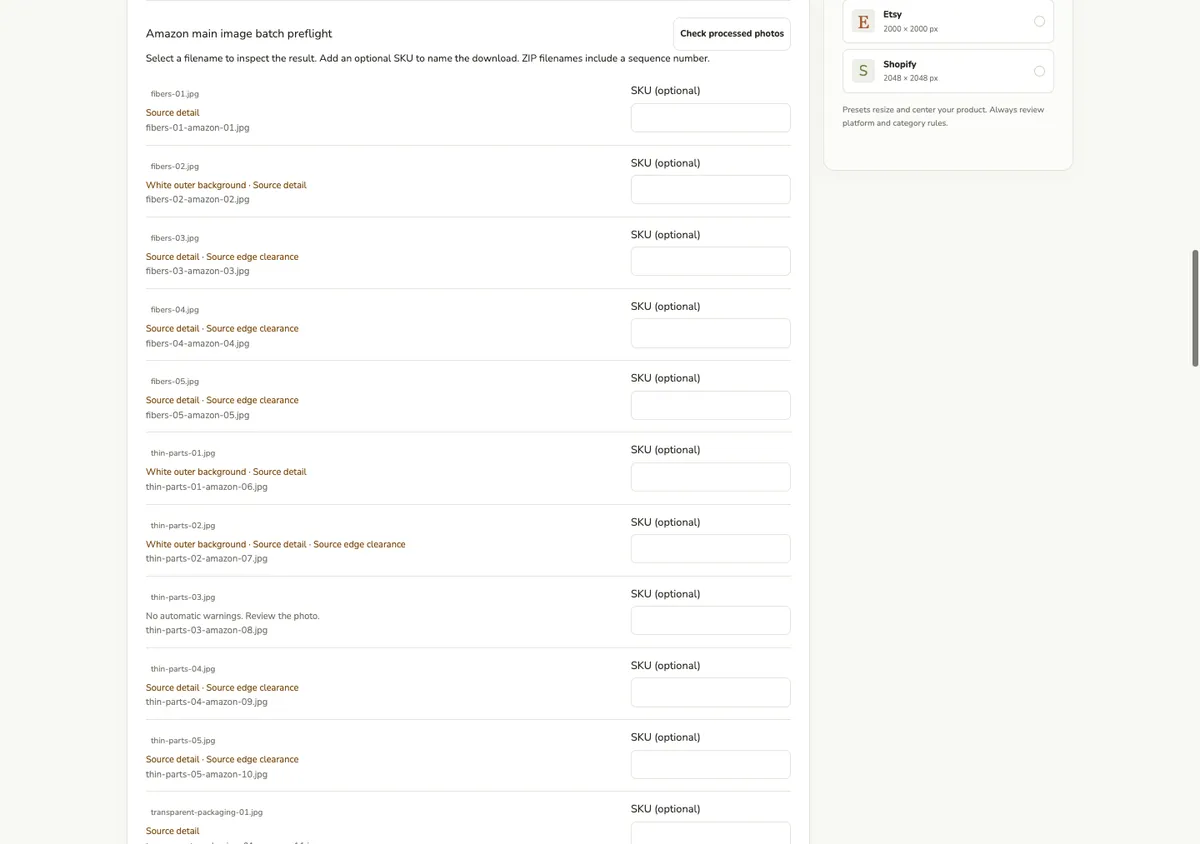
The batch report lets you find which photos need a closer look. Review the preview and the relevant marketplace requirements before uploading.
Add SKUs and check the downloaded ZIP
Enter each SKU beside its matching photo and review the resulting filename. In the test, entering DEMO-001 produced DEMO-001-amazon-01.jpg. Download the ZIP, extract it, and compare the files against your SKU list. Our sample archive contains 20 JPGs, the per-image preflight report and source attribution. Download the tested ZIP
If your catalog needs transparent PNGs, use the bulk background remover to export that batch separately.
Questions and contact
For questions about this page or the service, contact support@shopcutout.com